
Seva Sindhu Shows “Already Applied” Error? Complete Guide
Many users encounter the frustrating situation where Seva Sindhu displays an “Already Applied” error even though they haven’t submitted an application. This is a common issue, especially for government schemes, welfare services, or subsidy applications.
The good news is that this error can be fixed. This comprehensive guide will explain why it occurs, how to resolve it step by step, how to confirm your application status, and what to do if nothing seems to work. Additionally, it includes tips, common mistakes, and FAQs to make the process smoother.
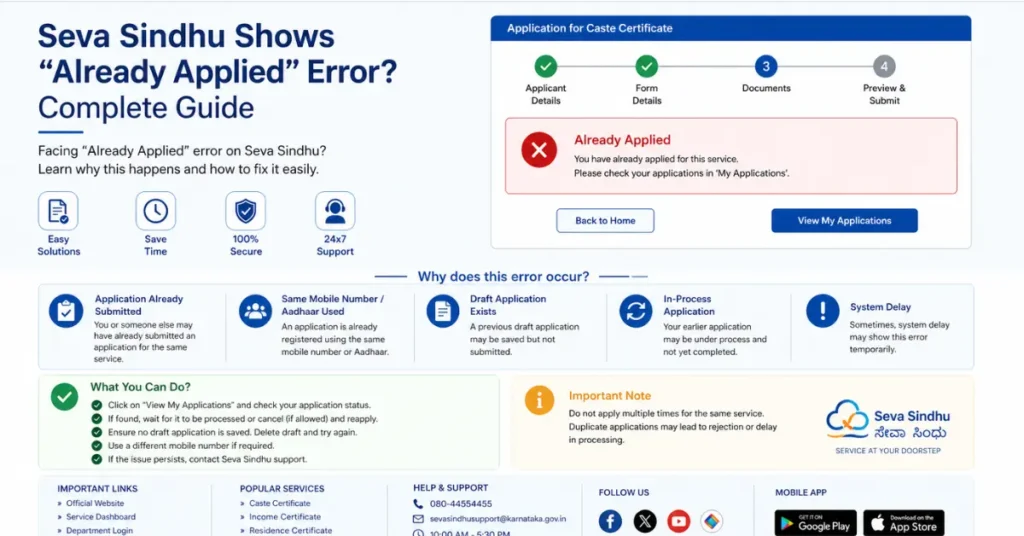
What Is the “Already Applied” Error on Seva Sindhu?
The “Already Applied” error indicates that the portal recognizes your Aadhaar number, registered mobile number, or user session as having submitted an application for the selected service.
It does not always mean that you have completed the application — sometimes a partial or incomplete attempt is recorded, or a technical glitch misreads the data.
Key points:
Common Causes of the Error
Understanding the reason behind the error helps in fixing it efficiently. The main causes include:
Unfinished Previous Applications
If you started filling out an application but didn’t complete the submission (e.g., closed the browser or lost internet), the portal may still record a partial attempt.
Example:
You start a subsidy application and upload your documents, but the portal crashes before you can submit it. Later, when you try again, it may show “Already Applied.”
Duplicate Aadhaar or Mobile Number
Seva Sindhu links your Aadhaar number and mobile number to your application. If the same information is used in another submission, the portal blocks new entries.
Example:
Two family members use the same Aadhaar-linked mobile number for separate applications. The portal may flag the second attempt as “Already Applied.”
Browser Cache or Session Conflicts
Old browser sessions can interfere with Seva Sindhu, making it think an application already exists.
Tip: Clear your cache or use incognito mode before starting a new application.
Server or Database Issues
High traffic or backend delays can cause the portal to misread records, temporarily displaying the error even if no application exists.
Multiple Attempts From the Same Device
Repeatedly trying to submit the application from the same device or browser without clearing the cache can trigger the “Already Applied” detection.
Step-by-Step Guide to Fix the Error
Follow these detailed steps to resolve the issue:
Clear Browser Cache and Cookies
Clearing the cache ensures the portal loads a fresh session.
How to do it:
Open browser settings.
Go to Privacy & Security → Clear Browsing Data.
Select Cache and Cookies, then confirm.
Close the browser and reopen the portal.
Tip: Use private or incognito mode to avoid any cached session data.
Try a Different Browser or Device
Some issues are browser-specific. If clearing the cache doesn’t help:
Tip: Avoid using outdated browsers like Internet Explorer.
Verify Aadhaar and Mobile Number
Check that your Aadhaar number and registered mobile number are correct:
Only one application per Aadhaar/mobile is allowed.
If another family member used the same mobile number, consider using an alternate number.
Ensure your mobile number is active to receive OTPs during verification.
Check for Pending Applications
Partial or incomplete applications may block new submissions.
How to check:
Log in with your Aadhaar or mobile number.
Go to My Applications / My Requests.
Look for pending or incomplete applications.
Complete the pending application if found.
Tip: Even an application that wasn’t fully submitted can trigger “Already Applied.”
Log Out and Log Back In
A simple log out can reset your session:
Log out of the portal.
Close your browser completely.
Open the portal and log in again.
This refreshes your session and often resolves the error.
Reset or Start a New Application
Some services provide a “Start New Application” or “Reset Application” option:
Click the button to reset your session.
Re-enter your information carefully.
Submit the application as a new entry.
Tip: Resetting clears old session data and allows you to start fresh.
Wait and Retry During Off-Peak Hours
Server overload can temporarily block submissions.
Tip: Portal traffic affects performance. Retrying after a few hours often works.
Contact Seva Sindhu Support
If the issue persists:
Use the helpdesk or support section of the portal.
Provide your Aadhaar number, mobile number, and a screenshot of the error.
Support staff can check backend data and clear duplicate entries.
Visit Local E-Governance Centers
For persistent errors, offline support may help:
Tip: Keep documents ready for verification, including your mobile number, Aadhaar, and any reference numbers.
How to Confirm Application Status
After fixing the error:
Log in to Seva Sindhu.
Go to My Applications / Track Application.
Enter your Aadhaar or mobile number.
Check the status: Submitted, Pending, Approved, or Rejected.
Tip: Always check SMS and email notifications for confirmation of your application.
Common Mistakes That Cause the Error
Avoiding these mistakes prevents the “Already Applied” error. You can also read:
Troubleshooting Scenarios
Portal Crash During Application – Retry using a different browser/device, then clear the cache.
Upload Errors – Ensure documents are in the correct format (PDF, JPG, PNG) and within size limits.
No Confirmation – Take screenshots and contact support.
Multiple Errors Despite Fixes – Use the reset option or visit a local service center.
Tips to Prevent Future Errors
FAQs
Final Words
The Seva Sindhu “Already Applied” error is a common but fixable issue. By following the steps above:
Clear cache and cookies
Try incognito mode or different browsers/devices
Verify Aadhaar and mobile number
Complete any pending applications
Reset or start a new application
Contact support if needed
Confirm status and keep reference numbers
With careful preparation and by following these steps, you can submit your application successfully, avoid errors, and ensure timely processing.


