
Seva Sindhu Status Shows ‘No Records Found’ – Fixes
Checking the status of your application on the Seva Sindhu Portal should be simple. But sometimes, you log in, enter your application number, and… nothing. You see the dreaded message:
“No Records Found.”
Don’t panic. This happens to many people, and most of the time it’s not a serious issue. In this article, I’ll explain the hidden reasons why this happens and step-by-step solutions so you can track your application successfully.
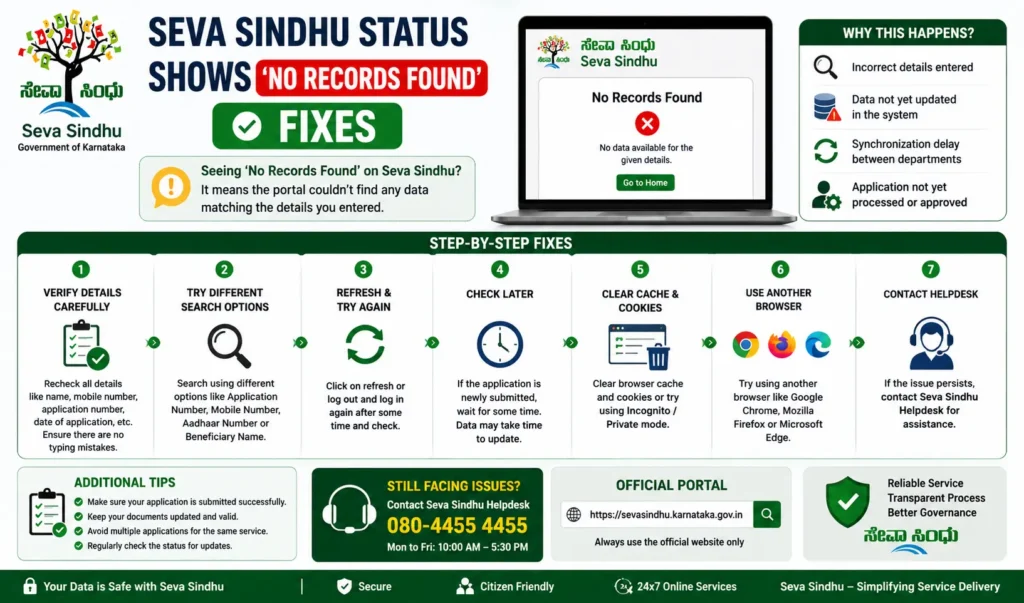
What Does “No Records Found” Mean?
The “No Records Found” message simply means the portal cannot retrieve your application details. This could be due to:
It doesn’t always mean your application is lost, so stay calm — there’s a solution.
Common Reasons for “No Records Found”
Incorrect Application Number
A simple typo can prevent the portal from locating your application.
Even missing one digit or letter causes this error.
Tip: Double-check your application number from the submission receipt or SMS confirmation.
Wrong Details Entered
Some services require additional info like Aadhaar number, mobile number, or date of birth.
If these details don’t match the records, the portal shows “No Records Found.”
Solution: Ensure every field matches exactly as submitted.
Backend Update Delays
Sometimes the department updates the status slowly.
Even if your application has been processed, the portal may take a few days to reflect the change.
Tip: Wait a few days before trying again, especially during peak periods.
Technical Glitches or Server Issues
Server maintenance, high traffic, or bugs can prevent the portal from fetching records.
This is usually temporary and resolves on its own.
Tip: Try accessing the portal after some time or during off-peak hours.
Application Not Yet Registered Properly
Occasionally, the submission might not have been recorded due to a network issue or an incomplete form.
In this case, the portal cannot find any records.
Solution: Verify your submission receipt. If you didn’t get one, contact support or visit a service center.
Step-by-Step Fix for “No Records Found”
Check Your Details Carefully
Verify application number, Aadhaar number, mobile number, and other required fields.
Ensure there are no typos or extra spaces.
Try Incognito/Private Mode
Open the portal in incognito mode to avoid issues caused by cached data or cookies.
Clear Browser Cache
An old cache may prevent the portal from fetching updated records.
Clear cookies and cache, then log in again.
Wait for Backend Updates
If your application is new, give it 2–3 days for the department to process and update the status.
Check again later if the message persists.
Check the Submission Receipt
Ensure you received a confirmation message or receipt after submission.
This proves that your application exists in the system.
Contact the Relevant Department
Call or email the department handling your service: Provide the application number and the date of submission
Ask them to verify if your application exists in the system
Visit a Common Service Center (CSC)
CSC staff can access backend systems to verify your application.
They can also escalate if your application isn’t showing up online.
Tips to Avoid “No Records Found” Errors
- Copy your application number carefully and keep it safe.
- Double-check all details before submission.
- Avoid submitting forms repeatedly — this can create multiple entries and confusion.
- Keep your documents ready to resubmit if needed.
- Track your application after a day or two, not immediately after submission. You can also read: Get Seva Sindhu Status When Reference Number Fails
FAQs
Final Words
Seeing “No Records Found” on Seva Sindhu can be frustrating, but it’s often not a serious problem. Most of the time, it’s caused by:
Typos or wrong details
Processing delays in the backend
Temporary server issues
By carefully checking your details, waiting for normal processing, and contacting the department or CSC if needed, you can resolve the issue quickly.

