
Fix Seva Sindhu “Session Expired” Login Errors Fast
If you’re trying to log in to the Seva Sindhu Portal and suddenly see a “Session Expired” error, it can be frustrating — especially when you’ve filled out your details and were ready to submit your application. Don’t worry; this happens to many users and is usually easy to fix. In this guide, I’ll explain why it happens, what you can do, and tips to prevent it in the future.
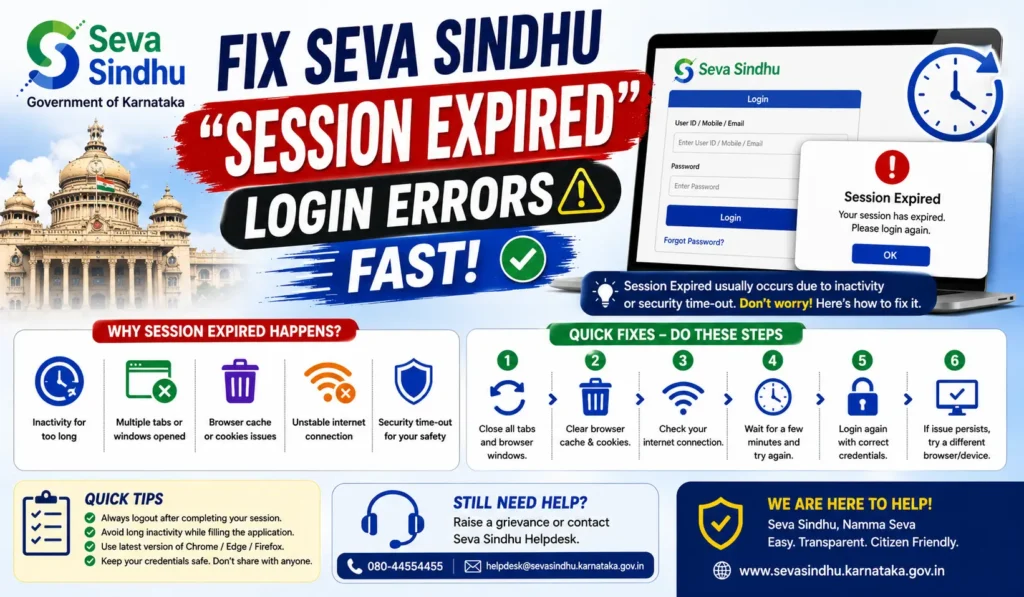
What Does “Session Expired” Mean?
A session is basically your temporary connection to the Seva Sindhu portal when you log in. It has a time limit for security reasons. If you take too long to fill in your form, or if the connection is interrupted, the session can expire.
When this happens, the portal logs you out automatically, and you see the message:
“Session Expired. Please login again.”
This is a security measure to protect your personal information.
Common Reasons for “Session Expired” Errors
Idle Time Too Long
If you leave the portal idle for a long time without activity, the session times out.
Filling forms slowly or leaving pages open in multiple tabs can trigger this.
Browser Cache or Cookies Issues
Old cache or cookies may conflict with the portal’s session system.
This can make your login session invalid almost immediately.
Network Issues
Slow or intermittent internet connections can interrupt your session.
Switching networks while logged in can sometimes log you out.
Multiple Tabs or Devices
Logging in on multiple devices or tabs at the same time can cause sessions to expire.
The portal may only allow one active session per user.
Server Glitches
Sometimes the Seva Sindhu portal experiences temporary server issues.
These can randomly end active sessions even if you were actively using the portal.
Step-by-Step Fix for “Session Expired” Error
Here’s how you can fix this problem quickly:
Refresh the Page
Sometimes, a simple refresh can reset your session.
Press F5 or click the refresh button in your browser.
Log Out and Log In Again
Close the current session completely.
Reopen the portal and log in from the start to start a new session.
Clear Browser Cache and Cookies
Go to your browser settings and clear cached files and cookies.
This ensures that outdated information does not interfere with your login session.
Use Incognito or Private Mode
Open a new incognito/private browser window.
Log in to Seva Sindhu from there.
This helps bypass cookies or cached data that could be causing issues.
Check Your Internet Connection
Make sure your internet is stable.
Avoid switching networks while filling out forms.
Use a strong Wi-Fi or mobile data signal.
Avoid Multiple Tabs or Devices
Only log in on one device and one tab at a time.
Multiple sessions can conflict and cause the “Session Expired” message.
Log In During Off-Peak Hours
Portal servers can be busy during peak hours.
Try logging in early morning or late evening for better stability.
Restart Your Device
Sometimes a simple restart refreshes the connection and clears session conflicts.
Tips to Prevent Session Expired Errors in the Future
Save Your Work Frequently: If filling out long forms, copy details to a separate document in case the session ends.
Keep Only One Tab Open: Avoid having multiple tabs of Seva Sindhu open at the same time.
Update Your Browser: Use the latest version of Chrome, Firefox, or Edge for better compatibility.
Stay Active on the Page: Don’t leave the form idle for long periods.
You can also read: Seva Sindhu “Submitted Forever? Quick Fixes & Tips
FAQs
Final Words
“Session Expired” errors on Seva Sindhu are annoying but easily fixable. Most of the time, the issue is caused by idle time, browser cache, network issues, or multiple logins.
By following the steps in this guide — refreshing, clearing cache, using incognito mode, and keeping one session at a time — you can avoid most session expiry problems and complete your applications smoothly.
Remember: stay patient, stay active on the portal, and save your work — that’s the key to a stress-free login experience.


